Gantt
Create dependencies with drag & drop
Dependencies let you link tasks together: when a task shifts, its successors automatically follow. MasterGantt supports two types of dependencies and creates them with a simple drag and drop.
Two types of dependencies
FS (Finish-to-Start) — task B cannot start until task A is finished. This is the most common type, used for sequential workflows.
SS (Start-to-Start) — task B starts at the same time as task A. Useful for parallel tasks that must begin together.
💡 Tip: Hover over a Gantt bar — two handles appear. The green handle (on the right) creates an FS dependency. The cyan handle (on the left) creates an SS dependency.
1. Create an FS dependency
1
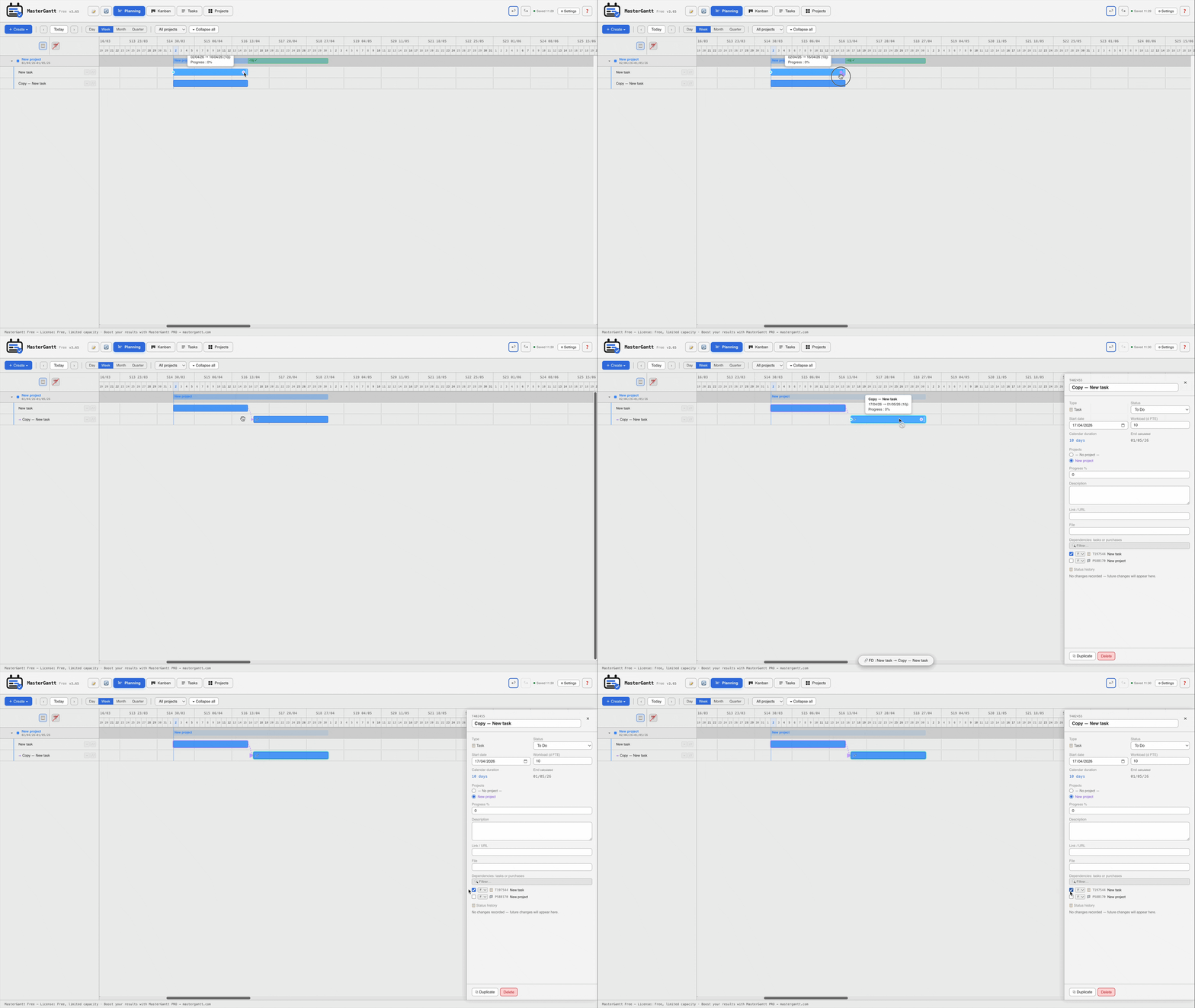
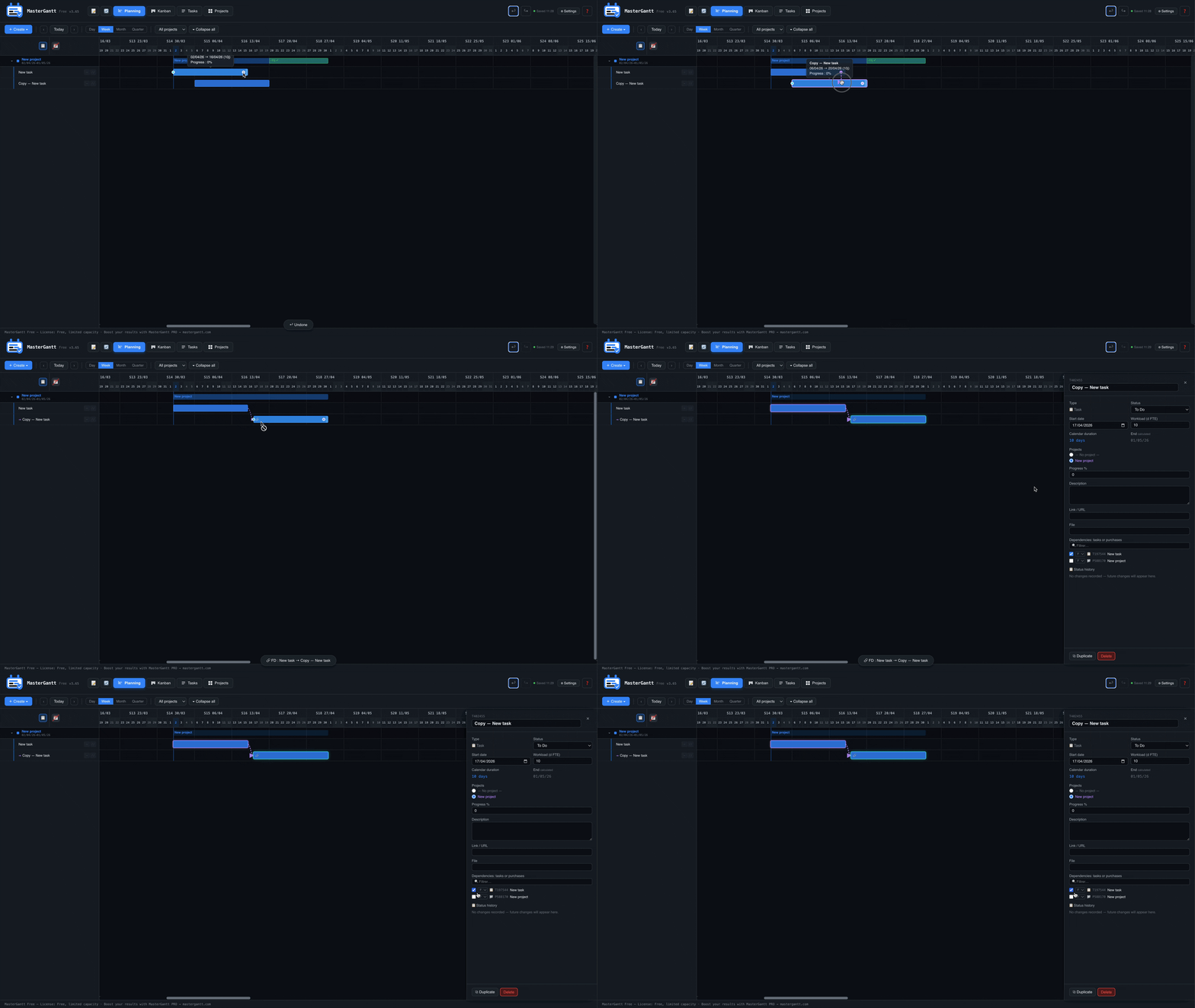
Hover over the source task bar in the Gantt chart.
2
Click and hold the green handle on the right side of the bar.
3
Drag to the target task bar and release.
4
An arrow appears between the two bars. The target task shifts automatically if needed.
2. Create an SS dependency
1
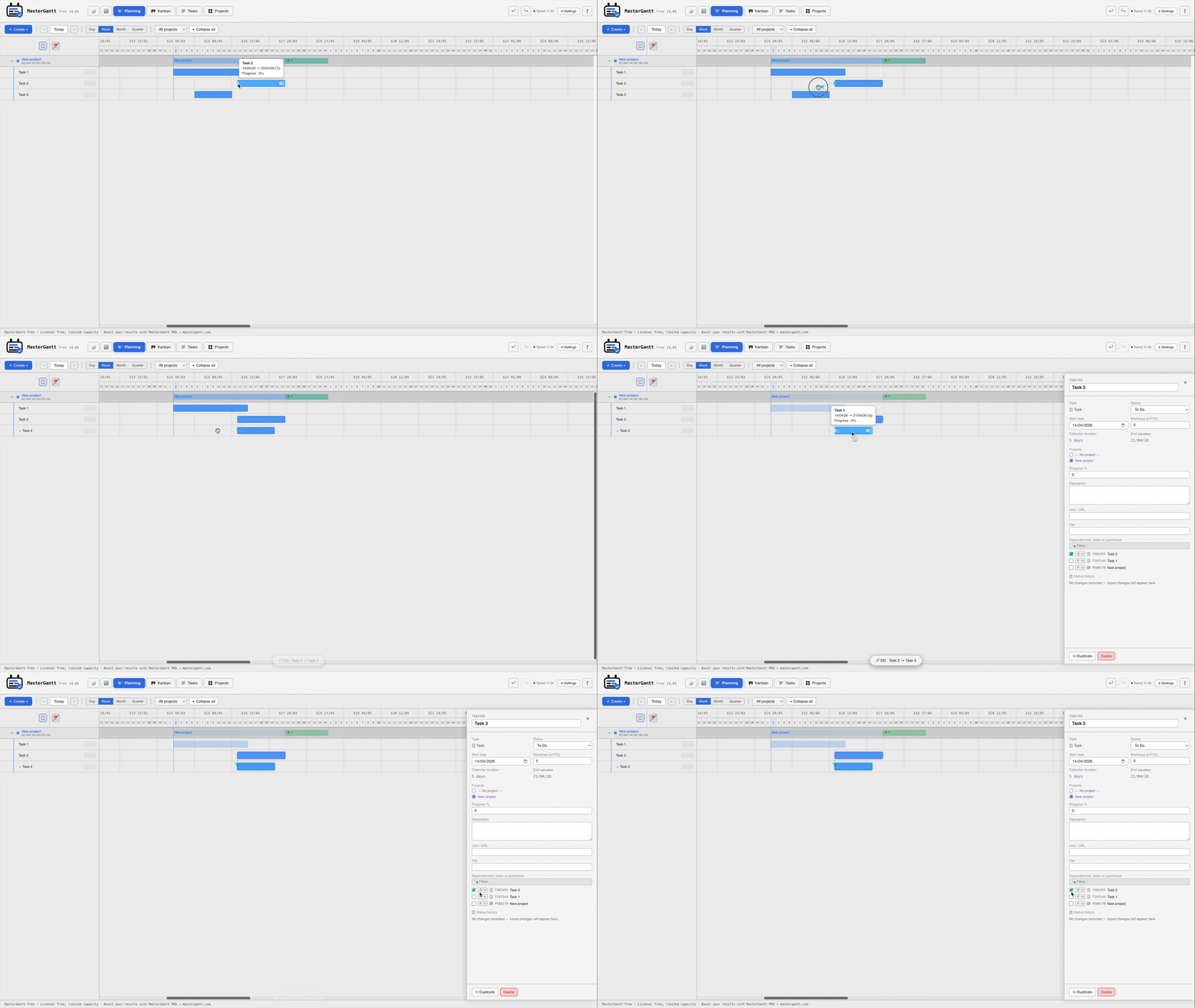
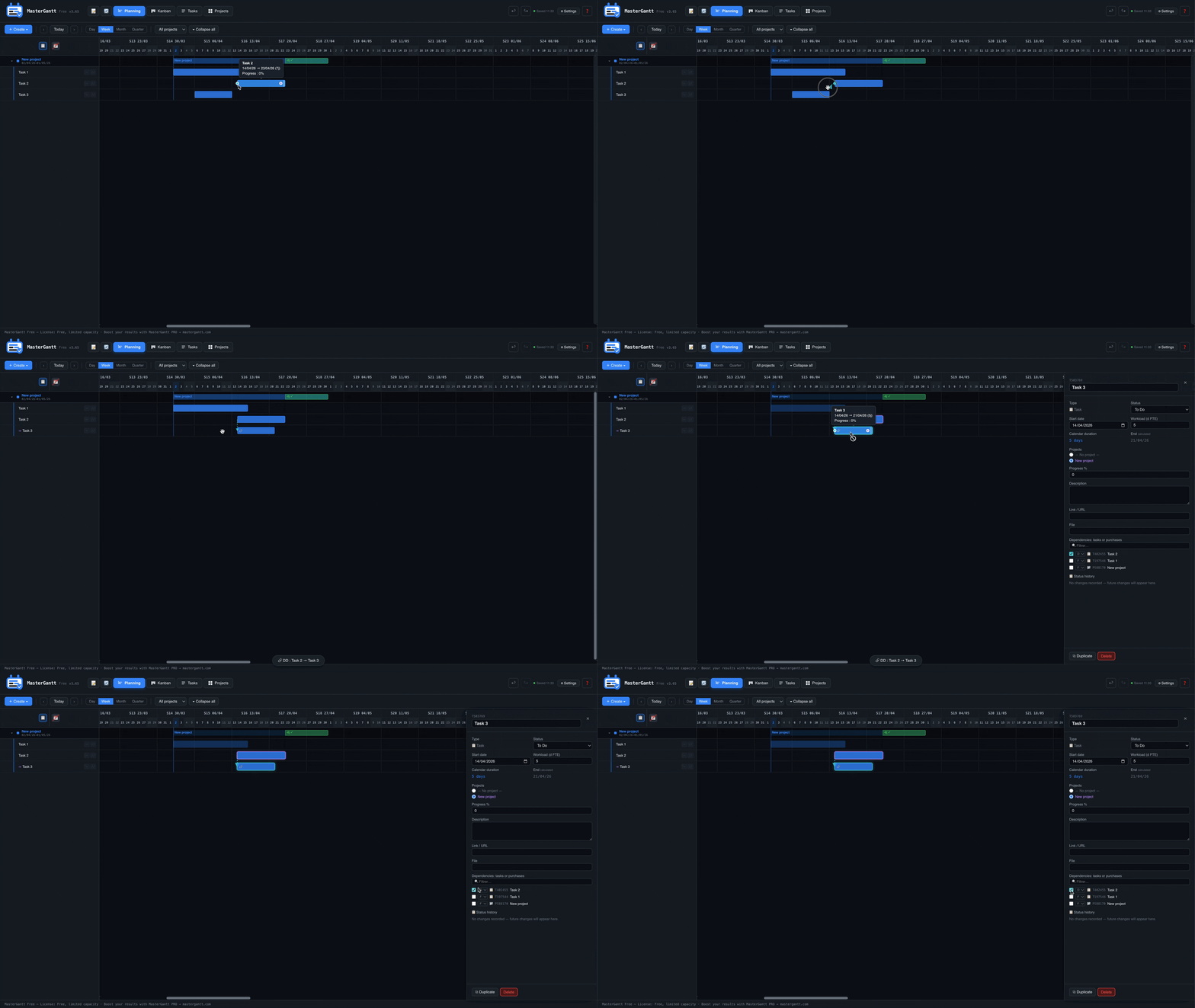
Hover over the source task bar.
2
Click the cyan handle on the left side of the bar.
3
Drag to the target task and release.
3. Cross-project dependencies
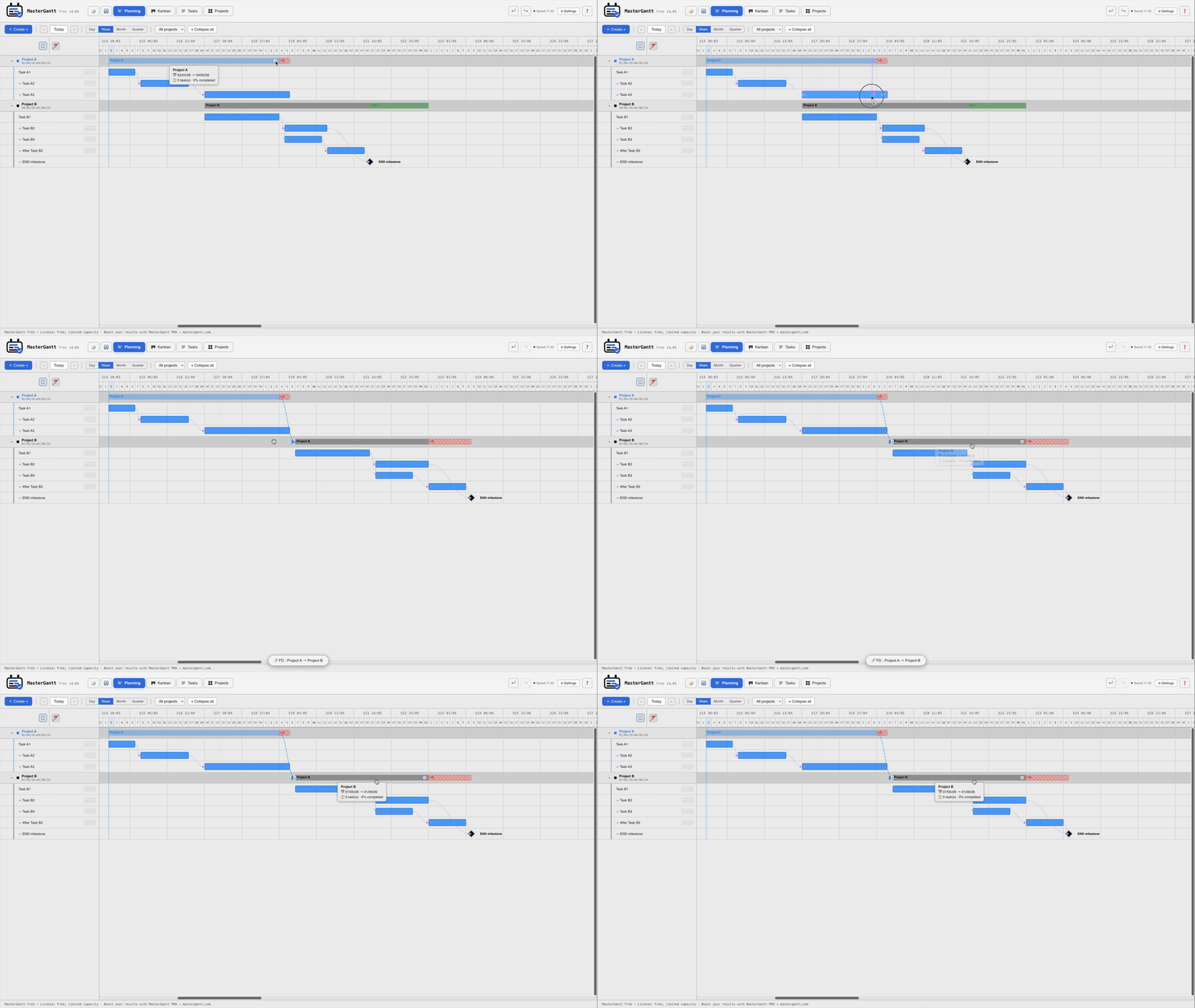
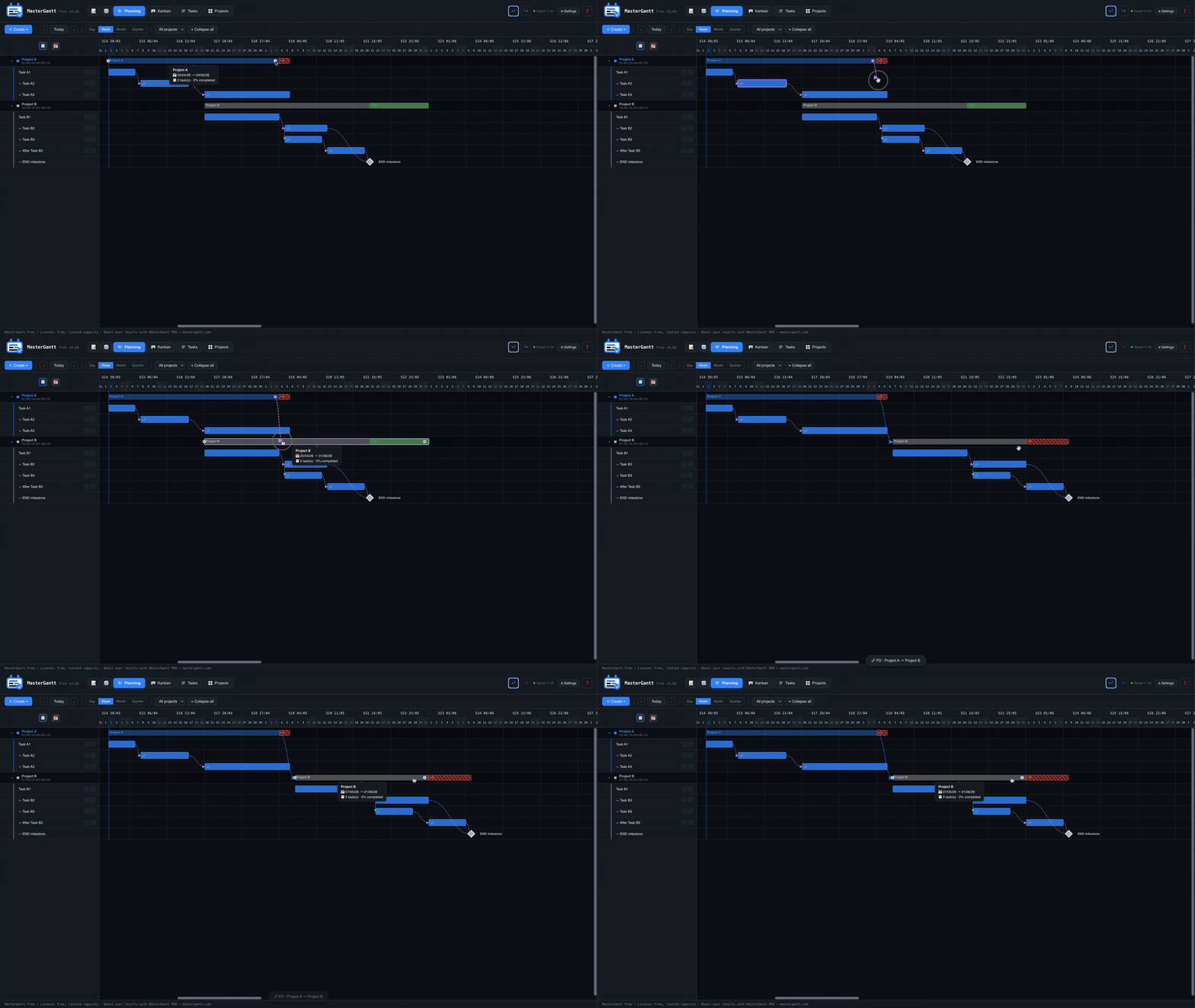
MasterGantt lets you create dependencies between tasks from different projects. The process is the same — just make sure both projects are visible in the Gantt chart.
When you move a task, the cascade propagates automatically, even across projects and programs. This is a unique feature on the market.
4. View and delete a dependency
1
Click on a Gantt bar — the dependency chain is highlighted.
2
Open the task detail panel (double-click or click on the name).
3
In the Dependencies section, click the cross to remove a link.
🔗 Supported types: Dependencies work between tasks, purchases, projects, and programs. For example, you can link a purchase to a task to block it from starting until the equipment is delivered.